
Our data, right on the auction's lot page
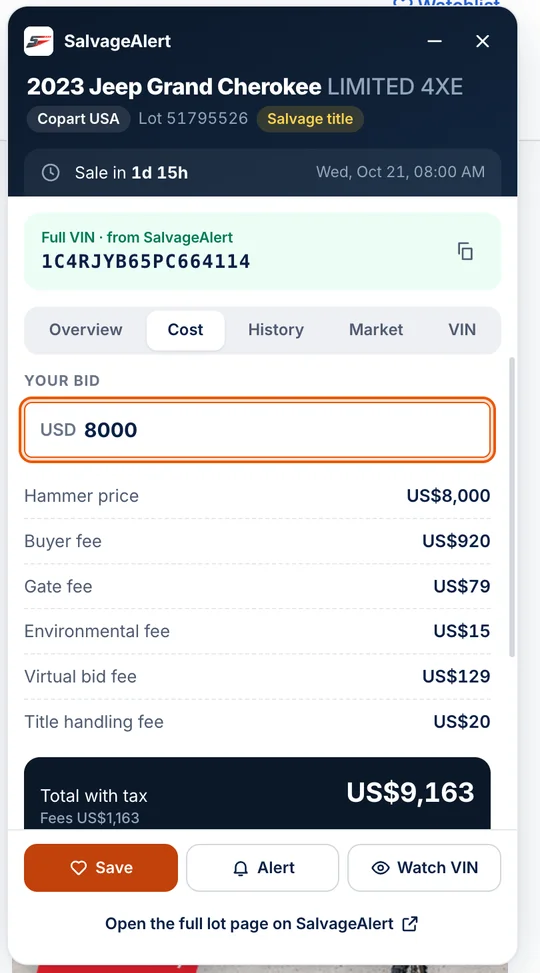
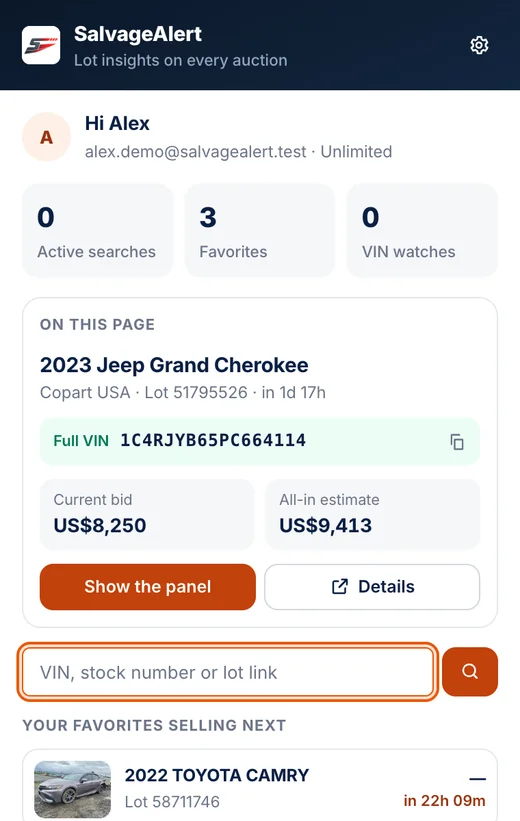
The SalvageAlert extension adds a panel to Copart and IAA lot pages: the full VIN, every fee added up, the car's earlier sales and a suggested max bid, without leaving the auction.
Beta 1.1.0 · updated Oct 19, 2026 · Free with any SalvageAlert account. Chrome, Edge, Brave, Firefox and Safari on a computer. How to install

In the stores soon
The extension is being reviewed by the stores. Until it is published, the beta installs in about a minute.
- Chrome Web StoreComing soon
- Firefox Add-onsComing soon
- Microsoft Edge Add-onsComing soon
- Safari on Mac and iPhoneComing soon
What it adds to every lot page
The full VIN
Where the auction hides the last digits, we show the complete VIN whenever we have it, ready to copy.
The real cost
Buyer fee, gate fee, online bidding fee and taxes, added up for any bid in the auction's currency.
The car's history
Earlier sales and relists of the same car, with the prices they reached.
Market prices
Recent sold comparables and a suggested max bid from the retail value and the repair estimate.
One-click actions
Save the lot, set a max bid, write a note or watch the VIN, synced with your account and the apps.
Badges in search results
Lots we know are marked right in the auction's own results pages.
Install the beta
The beta is not in the stores yet, so it installs by hand. Pick your browser below: it takes about a minute and you only do it once.
Chrome, Edge and Brave
- 1
Download the beta and unzip it. You get a folder.
- 2
Type chrome://extensions in the address bar (edge://extensions in Edge, brave://extensions in Brave).
- 3
Turn on Developer mode, at the top right of the page.
- 4
Click Load unpacked and choose the folder you unzipped.
- 5
Click the puzzle-piece icon in the toolbar and pin SalvageAlert.
Keep the folder: the browser loads the extension from it. Delete it and the extension goes too.
Firefox
- 1
Download the beta. Leave the file zipped.
- 2
Type about:debugging#/runtime/this-firefox in the address bar.
- 3
Click Load Temporary Add-on… and choose the zip file.
- 4
Pin SalvageAlert from the extensions button in the toolbar.
Firefox removes a temporary add-on when it restarts, so load it again after a restart until the signed version is on Firefox Add-ons.
Safari on Mac
- 1
Download the beta and open the zip: you get the SalvageAlert for Safari app. Drag it into Applications.
- 2
Open the app. If macOS asks whether to open an app downloaded from the internet, choose Open.
- 3
Click Quit and open Safari Settings, then tick SalvageAlert in the Extensions tab.
- 4
Open any Copart or IAA lot. When Safari asks, allow SalvageAlert on that site (Always Allow is easiest).
Needs macOS 12 or later. The app is signed and notarized by Apple. Keep it in Applications: Safari runs the extension from it.
Then connect your account
Click the SalvageAlert button in the toolbar and choose Connect. You sign in on salvagealert.com; the extension never sees your password.
Connect the extensionThe beta does not update itself. When a new version is out, download it again and replace the old one.
Private by design
The extension only runs on the auction sites above and on salvagealert.com. It reads the address of the lot you open, never your browsing history, and your password never leaves salvagealert.com.